Troubleshooting
This page covers common issues you might encounter when using pipelines and how to resolve them.
AppleScript Automation Access
Section titled “AppleScript Automation Access”If your pipeline uses AppleScript to control other applications (like sending keystrokes or automating apps), you may need to grant Freeway permission to control those apps.
The Problem
Section titled “The Problem”When a pipeline runs an AppleScript that controls another application, macOS requires explicit permission. Without it, the script will fail silently or show an error.
For example, if you create a pipeline to open a new browser tab with ⌘T:
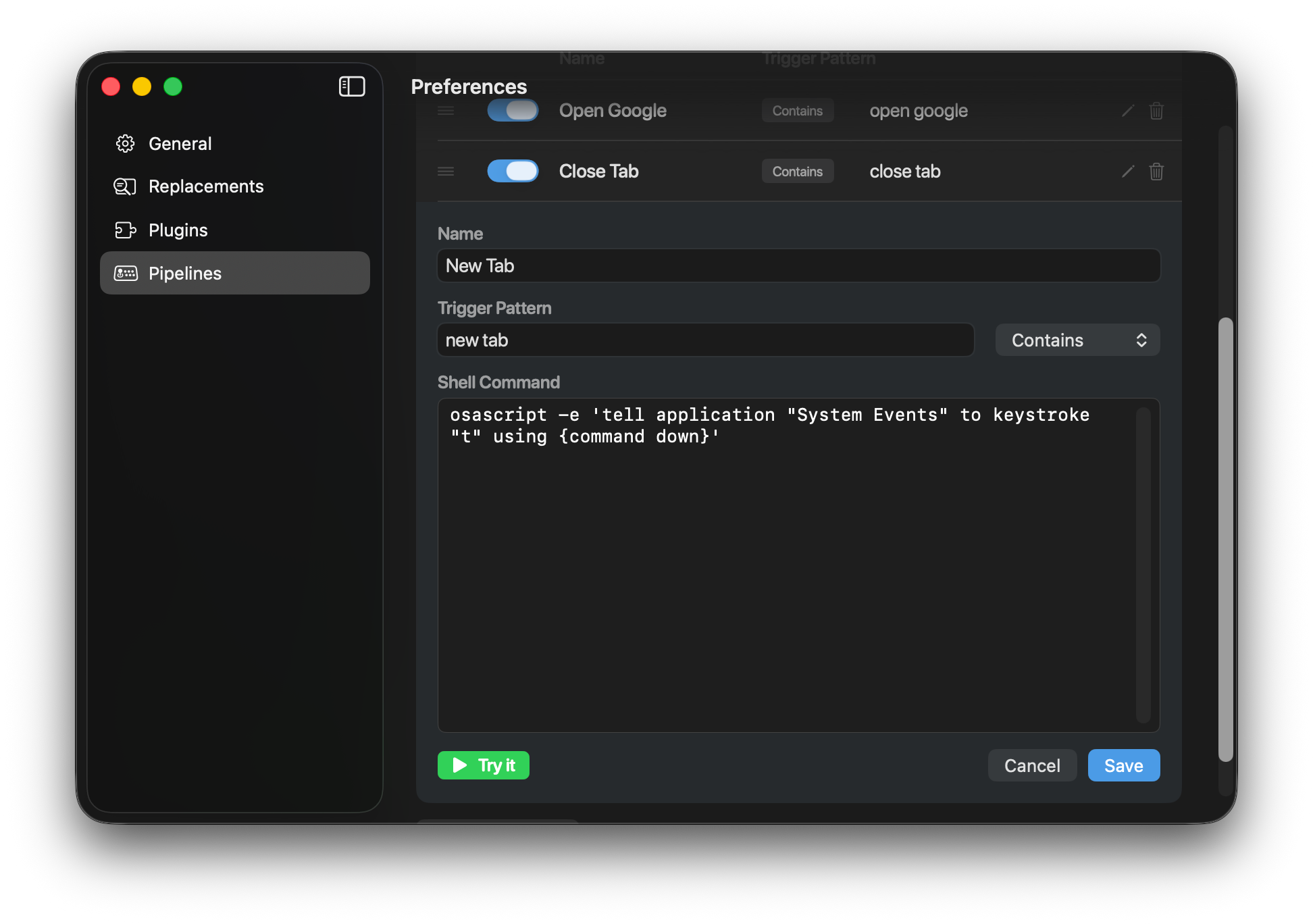
- Trigger: “new tab” (Exact match)
- Command:
osascript -e 'tell application "System Events" to keystroke "t" using command down'This pipeline sends a ⌘T keystroke to the frontmost application. If you’re in Safari, Chrome, or any browser — this opens a new tab.
The Solution
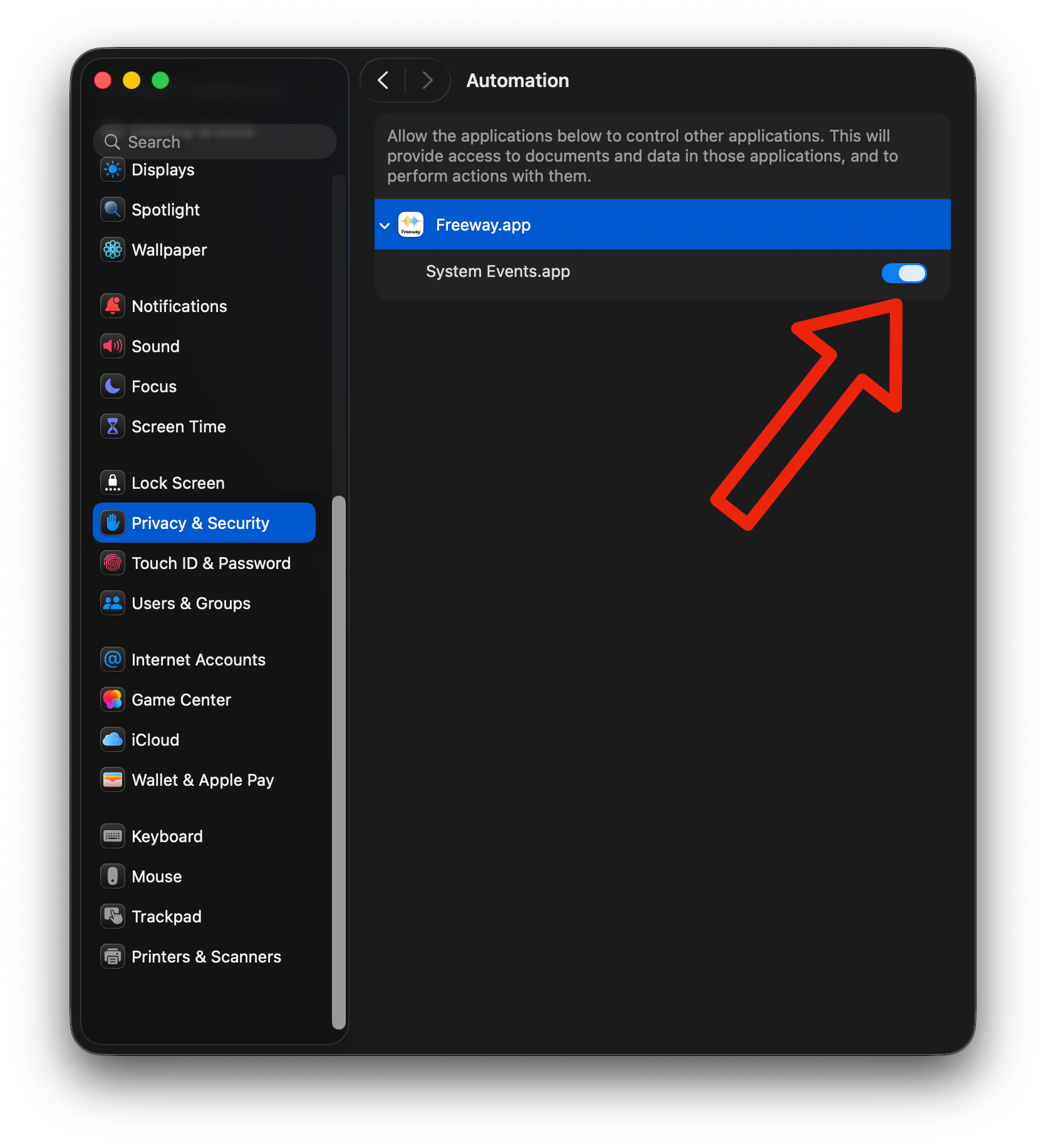
Section titled “The Solution”To allow Freeway to control other apps via AppleScript:
- Open System Settings → Privacy & Security → Automation
- Find Freeway in the list
- Enable the apps you want Freeway to control (e.g., System Events, Safari, Chrome)
Common AppleScript Examples
Section titled “Common AppleScript Examples”Open New Tab (⌘T)
Section titled “Open New Tab (⌘T)”osascript -e 'tell application "System Events" to keystroke "t" using command down'Close Tab (⌘W)
Section titled “Close Tab (⌘W)”osascript -e 'tell application "System Events" to keystroke "w" using command down'Undo (⌘Z)
Section titled “Undo (⌘Z)”osascript -e 'tell application "System Events" to keystroke "z" using command down'Save (⌘S)
Section titled “Save (⌘S)”osascript -e 'tell application "System Events" to keystroke "s" using command down'Select All (⌘A)
Section titled “Select All (⌘A)”osascript -e 'tell application "System Events" to keystroke "a" using command down'Other Common Issues
Section titled “Other Common Issues”Pipeline Not Triggering
Section titled “Pipeline Not Triggering”- Check that the trigger pattern matches what you’re saying
- Remember that matching is case-insensitive and punctuation is ignored
- Make sure there isn’t another pipeline with a higher priority that matches first
Command Fails Silently
Section titled “Command Fails Silently”- Test your command in Terminal first
- Add logging to debug:
echo "Debug: $FREEWAY_TEXT" >> /tmp/pipe-debug.log - Check for missing dependencies (e.g.,
python3,brewpackages)
Output Not Pasted
Section titled “Output Not Pasted”- Ensure your command produces output on stdout
- Check that the command exits with code 0 (success)
- If using background tasks (
&), the output won’t be captured
Timeout Errors
Section titled “Timeout Errors”Pipelines have a 45-second timeout. For long-running tasks:
# Run in background without waitingnohup your-command &>/dev/null &