Preferences
Freeway offers a variety of settings to customize your voice-to-text experience. Access preferences from the menu bar icon → Preferences, or use the keyboard shortcut.
Shortcut
Section titled “Shortcut”Configure the hotkey that activates Freeway.
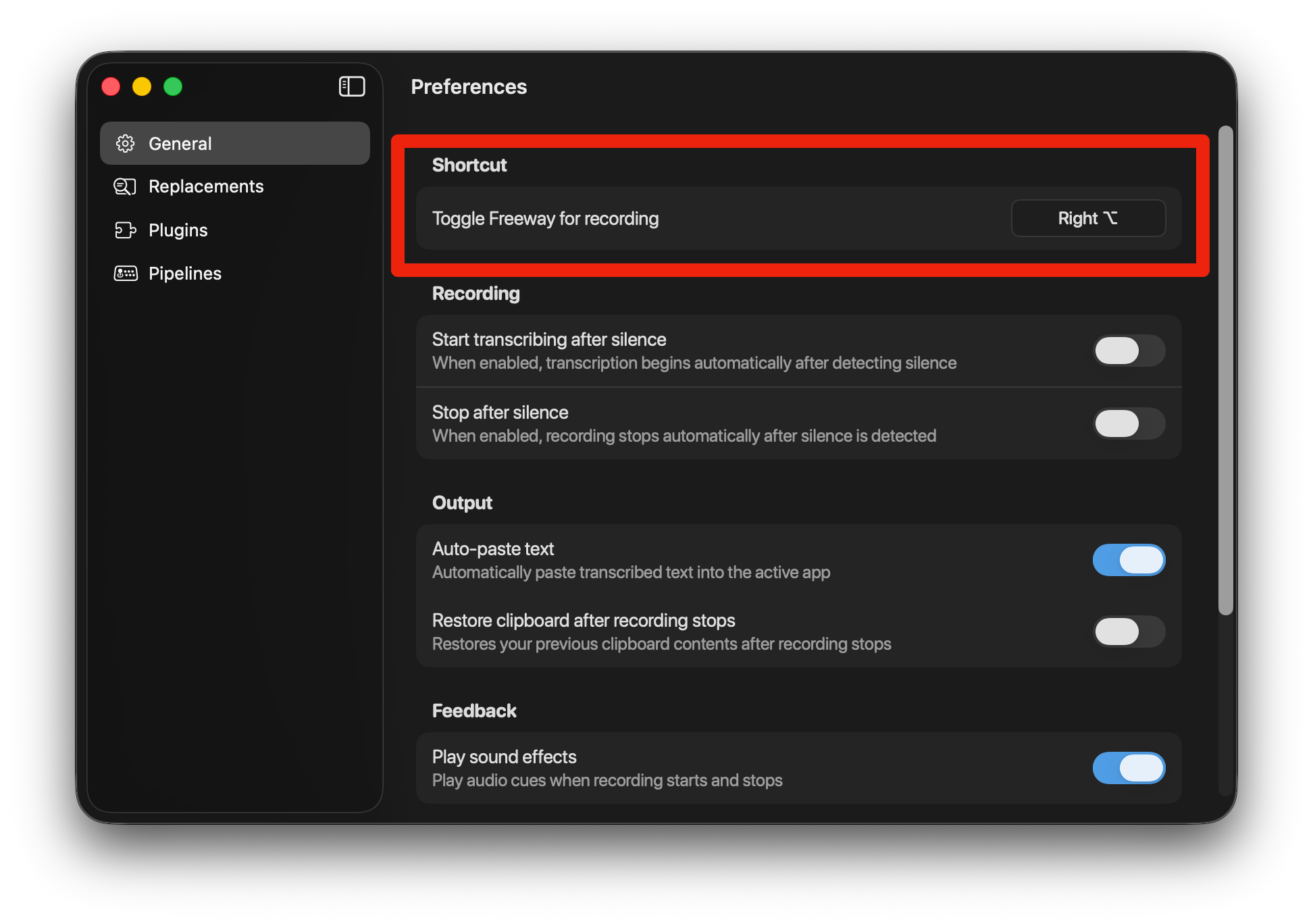
Toggle Freeway for Recording
Section titled “Toggle Freeway for Recording”The default hotkey is Right Option ⌥.
You can change this to any key combination you prefer:
- Single modifier keys (Option, Command, Control, Shift)
- Key combinations (e.g.,
⌘ + Shift + A) - Fn key
- Caps Lock
To change the hotkey:
- Click on the hotkey field
- Press your desired key combination
- The new hotkey is saved automatically
Recording
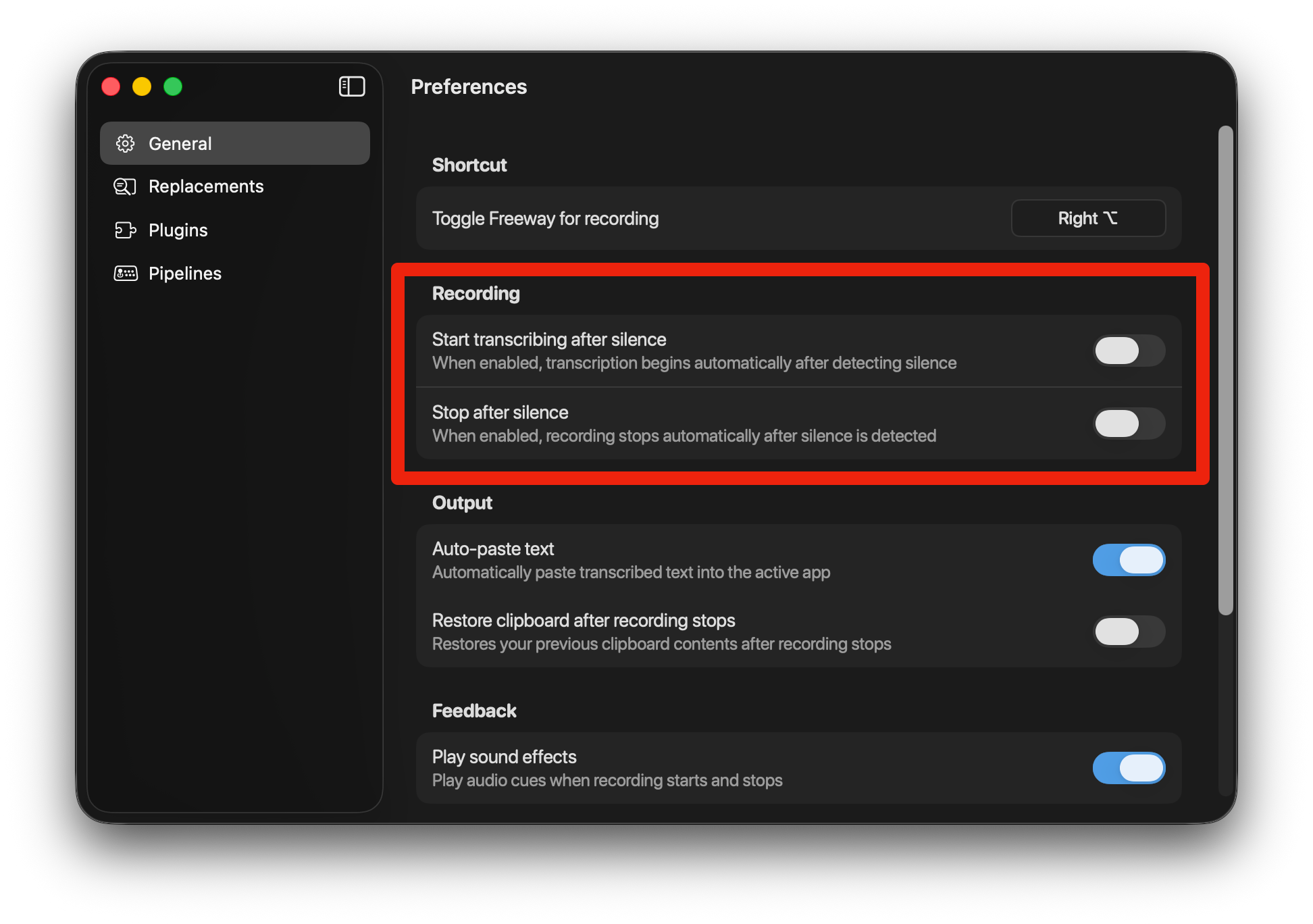
Section titled “Recording”Control how Freeway handles the recording and transcription process.
Start Transcribing After Silence
Section titled “Start Transcribing After Silence”When enabled, transcription begins automatically after Freeway detects a period of silence. This is useful for hands-free operation.
- Toggle: Enable/disable automatic start
- Silence duration: 0.3s to 2.5s (adjust how long to wait after silence before starting)
Stop After Silence
Section titled “Stop After Silence”When enabled, recording stops automatically when you stop speaking. No need to press the hotkey again.
- Toggle: Enable/disable automatic stop
- Silence duration: 0.3s to 2.5s (adjust how long to wait after silence before stopping)
Output
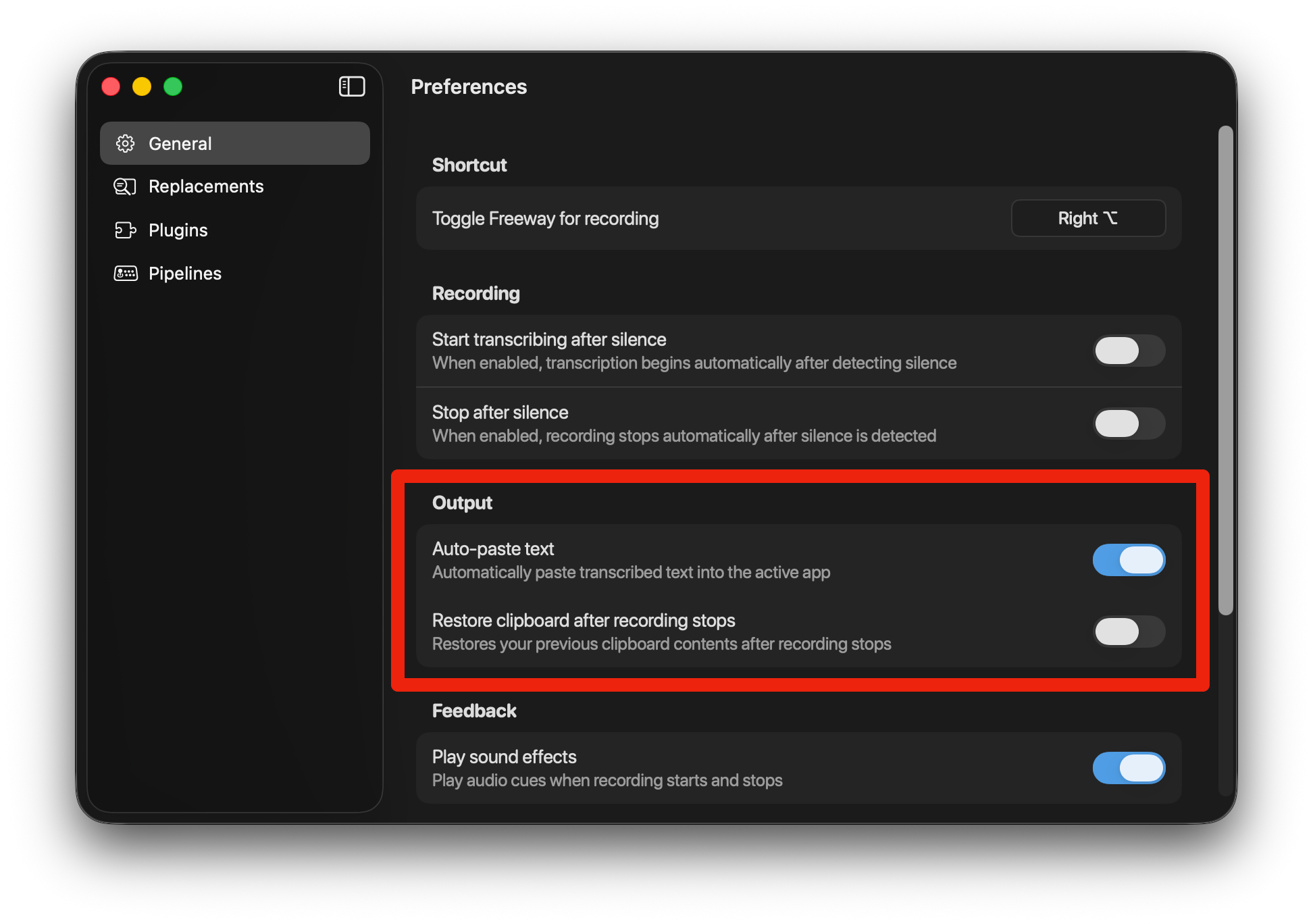
Section titled “Output”Control how Freeway handles the transcribed text.
Auto-paste Text
Section titled “Auto-paste Text”When enabled, Freeway automatically pastes the transcribed text into the active app where your cursor is positioned.
- Enabled (default): Text is pasted automatically after transcription
- Disabled: Text is only copied to clipboard; you paste manually with
⌘V
Restore Clipboard After Recording Stops
Section titled “Restore Clipboard After Recording Stops”When enabled, Freeway restores your previous clipboard contents after pasting the transcription. This means your clipboard won’t be “polluted” with transcribed text.
Use case: You have a URL copied to your clipboard. You dictate a message and Freeway pastes it. Your clipboard still has the URL ready to paste elsewhere.
Feedback
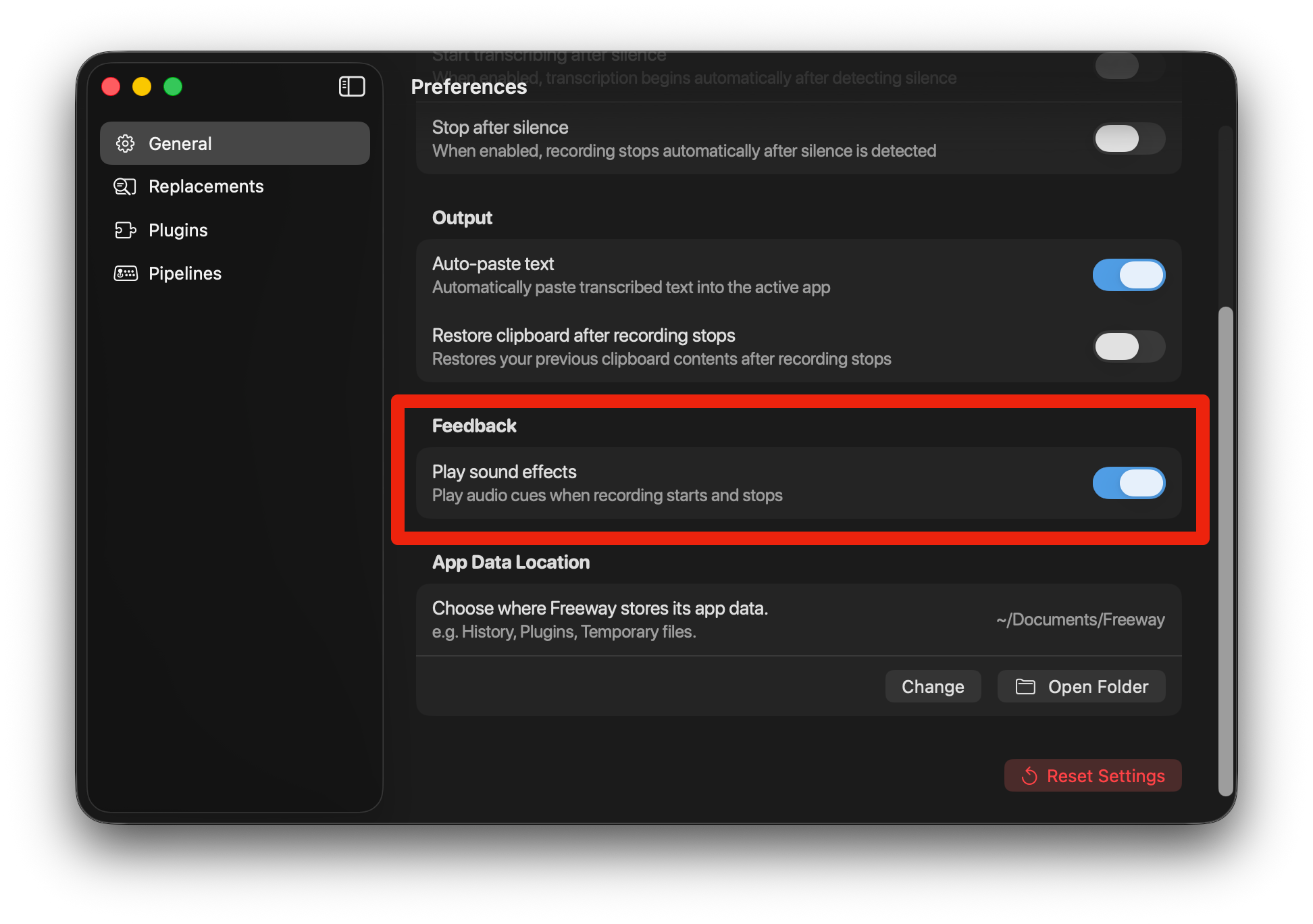
Section titled “Feedback”Customize the audio feedback during recording.
Play Sound Effects
Section titled “Play Sound Effects”When enabled, Freeway plays audio cues when recording starts and stops.
- Recording start: A subtle sound indicates Freeway is listening
- Recording stop: A confirmation sound when transcription is complete
App Data Location
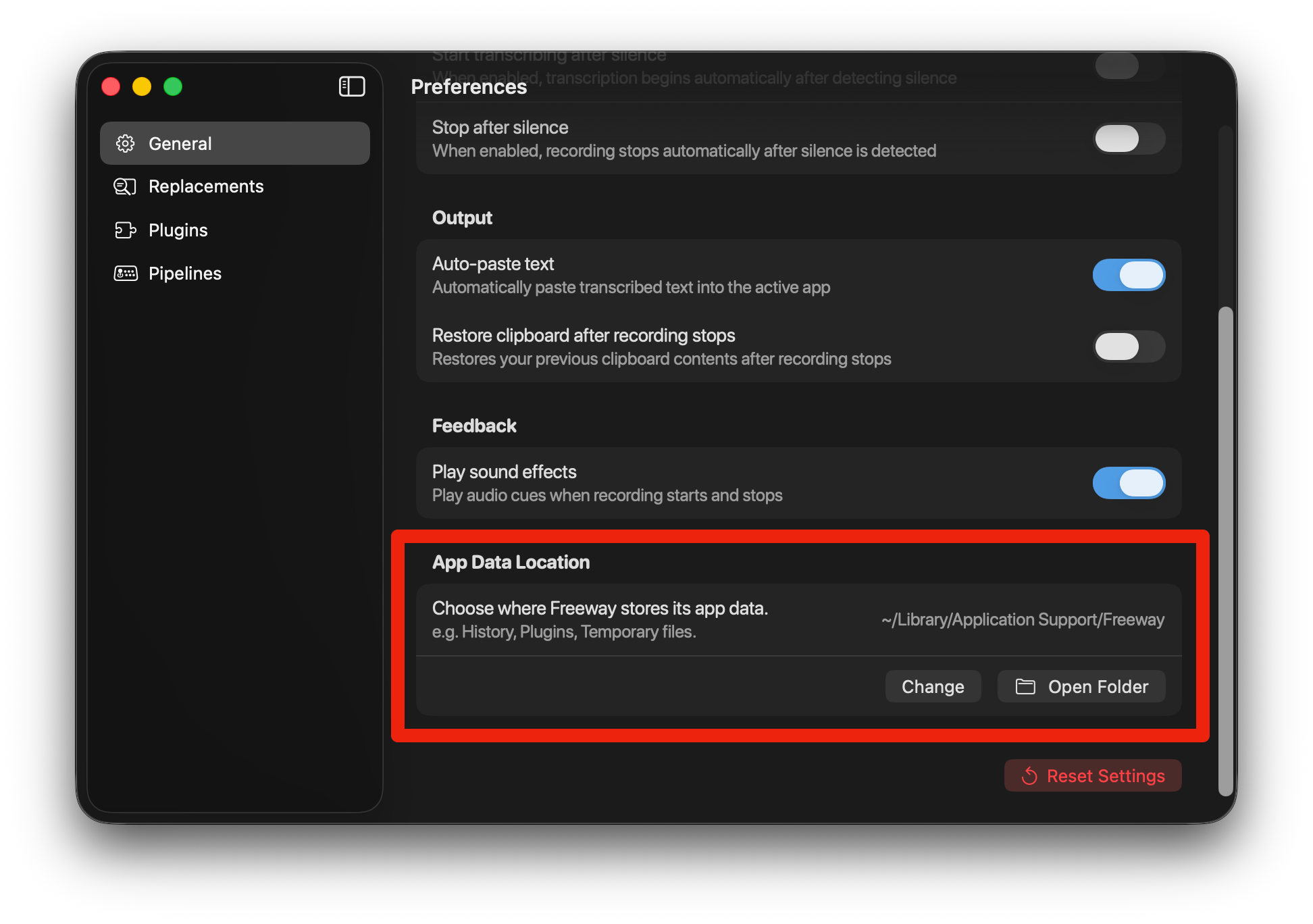
Section titled “App Data Location”Choose where Freeway stores its data.
What’s Stored There?
Section titled “What’s Stored There?”Freeway stores the following in your app data folder:
- Plugins — Your installed plugins and their settings
- Pipelines — Your configured shell pipelines
- Replacements — Your custom text replacement rules
- History — Recording history and temporary files
Default Location
Section titled “Default Location”~/Library/Application Support/FreewayChanging the Location
Section titled “Changing the Location”Click Change to select a different folder. This is useful if you want to:
- Sync across devices: Store in Dropbox, iCloud Drive, or Google Drive to share plugins and settings between Macs
- Keep data separate: Store on an external drive or different partition
- Backup easily: Store in a location that’s already part of your backup routine
After changing the location, Freeway will use the new folder for all data. Existing data is not automatically moved — you’ll need to copy it manually if needed.
Quick Access
Section titled “Quick Access”Click Open Folder to quickly access your Freeway data in Finder.
Use Invite Code
Section titled “Use Invite Code”Redeem an invite code shared by a friend.
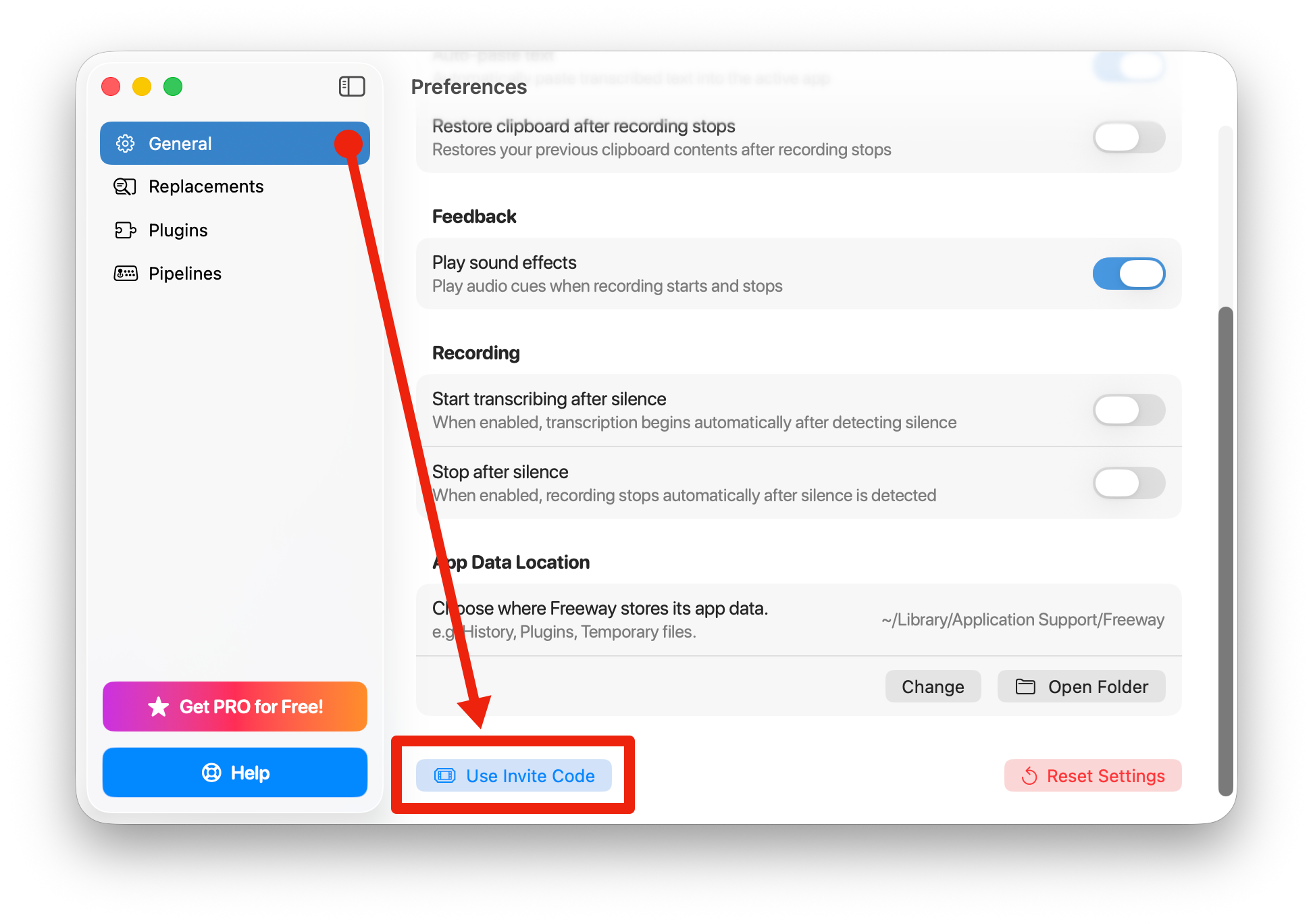
If someone shared an invite code with you, you can redeem it here. Click Use Invite Code, enter the code, and enjoy the benefits!
Reset Settings
Section titled “Reset Settings”Start fresh with default settings.
Click Reset Settings to restore all preferences to their default values.
Bonus: The Onboarding Experience
Section titled “Bonus: The Onboarding Experience”After resetting and restarting Freeway, you’ll see the beautiful onboarding wizard again — like meeting an old friend for the first time!
It’s a great way to rediscover features you might have forgotten about.