Replacements
Replacements let you automatically substitute specific words or phrases in your transcriptions. This is perfect for fixing common misrecognitions, expanding abbreviations, or ensuring consistent terminology.
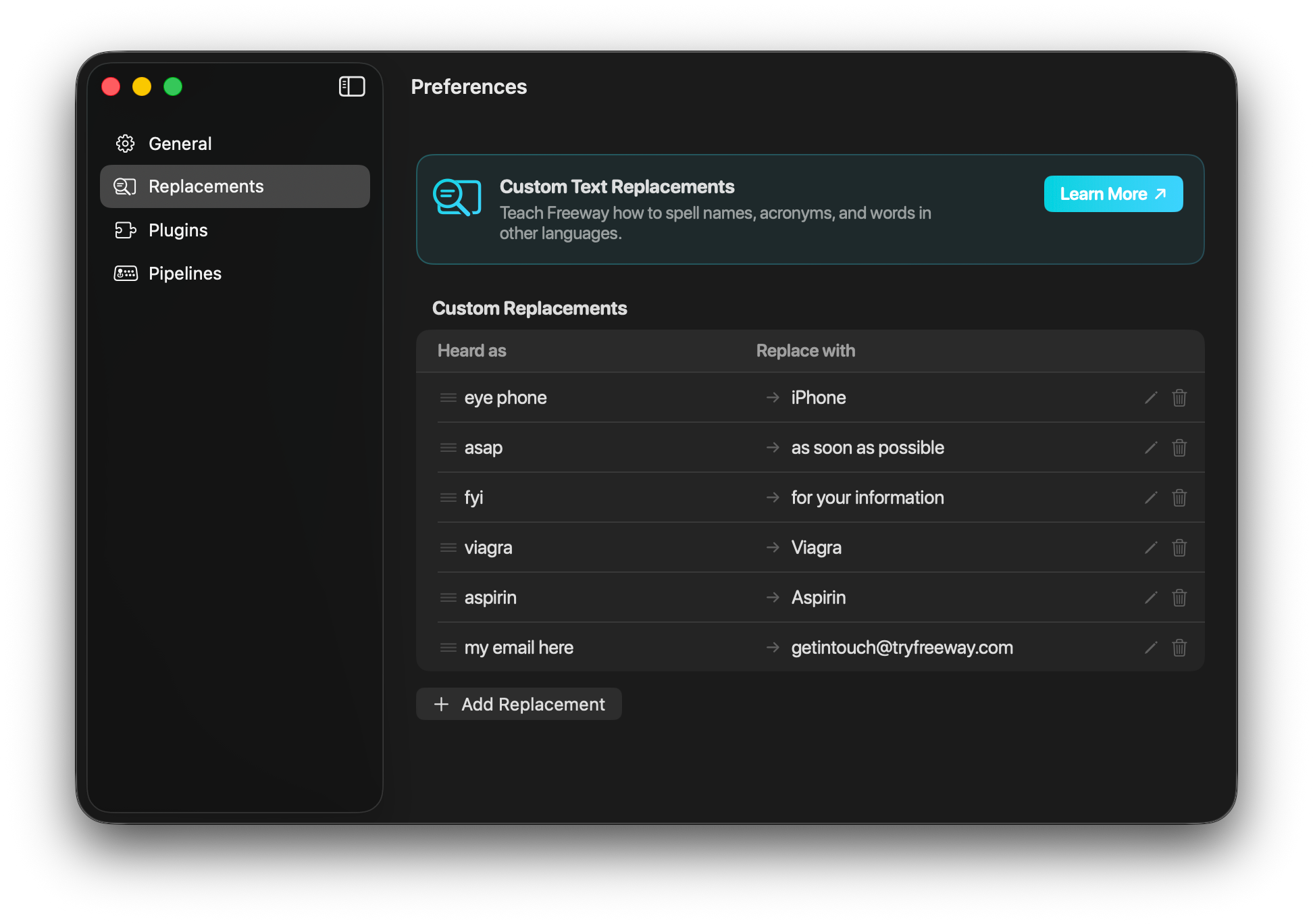
What Are Replacements?
Section titled “What Are Replacements?”Replacements are simple find-and-replace rules that run automatically on every transcription. When Freeway transcribes your speech, it checks each rule and substitutes matching text before pasting.
Example: If you frequently say “eye phone” but want it written as “iPhone”, create a replacement rule:
- Head as:
eye phone - Replace with:
iPhone
Now every time you dictate “eye phone”, it will automatically become “iPhone” in your text.
Creating Replacement Rules
Section titled “Creating Replacement Rules”- Open Freeway Preferences
- Go to the Replacements tab
- Click Add Rule (or the
+button) - Fill in the fields:
- Heard as: The text to find (what you say)
- Replace with: The text to substitute (what you want)
- Match Case: Toggle case-sensitive matching
Match Case Option
Section titled “Match Case Option”- Off (default): Matches no matter how you say it, uppercase or lowercase
- “coffee shop” matches “Coffee Shop”, “COFFEE SHOP”, “coffee shop”, etc.
- On: Only matches exactly as you say it
- “Coffee Shop” only matches “Coffee Shop”
Use Cases
Section titled “Use Cases”Fix Common Misrecognitions
Section titled “Fix Common Misrecognitions”Sometimes the AI model consistently mishears certain words or names:
| Heard as | Replace with |
|---|---|
john smith | Jon Smyth |
acme corp | ACME Corp. |
eye phone | iPhone |
Expand Abbreviations
Section titled “Expand Abbreviations”Speak short forms and have them expand to full text:
| Heard as | Replace with |
|---|---|
asap | as soon as possible |
btw | by the way |
fyi | for your information |
lmk | let me know |
tbh | to be honest |
Medical Terms
Section titled “Medical Terms”Easily correct difficult-to-dictate medical vocabulary:
| Heard as | Replace with |
|---|---|
hypertension | hypertension |
diabetes | diabetes mellitus |
clostridioides difficile | Clostridioides difficile |
ekg | ECG |
metformin | metformin |
g i bleed | GI bleed |
cbc | CBC |
aspirin | Aspirin |
Add your own medical abbreviations, drug names, or terms for accurate and clean documentation.
Company & Product Names
Section titled “Company & Product Names”| Heard as | Replace with |
|---|---|
my coffee shop | My Coffee Shop LLC |
blue ribbon software | Blue Ribbon Software |
try freeway | TryFreeway.com |
Email Signatures
Section titled “Email Signatures”Create shortcuts for frequently typed information:
| Heard as | Replace with |
|---|---|
insert my email here | [email protected] |
insert my phone here | +1 (555) 123-4567 |
insert my address here | 123 Main St, City, State 12345 |
Tips & Best Practices
Section titled “Tips & Best Practices”Order Matters
Section titled “Order Matters”Replacements are applied in the order they appear in the list. If you have overlapping rules, put the more specific ones first.
Test Your Rules
Section titled “Test Your Rules”After creating a rule, test it by dictating the source phrase to make sure it works as expected.
Keep It Simple
Section titled “Keep It Simple”Start with a few essential replacements and add more as you discover patterns in your transcriptions.
Use for Privacy
Section titled “Use for Privacy”You can use replacements to automatically redact sensitive information:
| Heard as | Replace with |
|---|---|
my social | [SSN REDACTED] |
my password | [PASSWORD REDACTED] |
Managing Rules
Section titled “Managing Rules”Reorder Rules
Section titled “Reorder Rules”Drag and drop rules to change their order. Remember, order matters for overlapping patterns.
Edit Rules
Section titled “Edit Rules”Click on any rule to edit its source, replacement, or case sensitivity.
Delete Rules
Section titled “Delete Rules”Click the delete button (trash icon) to remove a rule. This action cannot be undone.
Import/Export
Section titled “Import/Export”Rules are stored in your App Data Location as JSON files. You can:
- Back up your rules by copying the files
- Share rules with others
- Sync rules across devices via cloud storage
The rules file is located at:
~/Library/Application Support/Freeway/Replacements/general.json